Create your event, invite guests and bring quizzes, games, quests, stories and photos together. You control the evening; guests join in from their phones.
Starter games: Free for up to 10 players · Event planning: Events
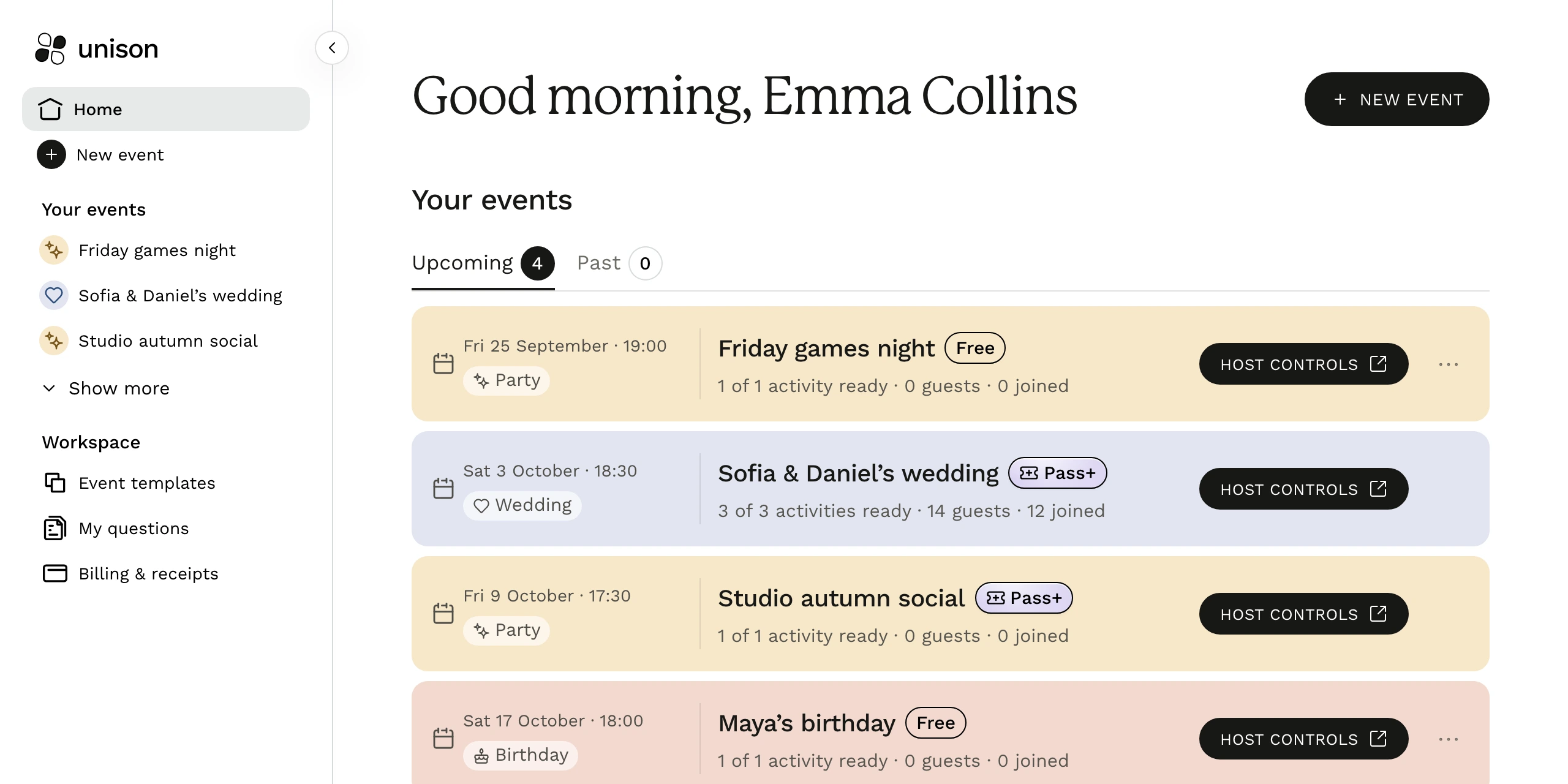
One workspace for your events. Example data shown.
Before, during and after the event
With Events, prepare the games, invite your guests and keep their stories and photos together in one event link.
1
Build your event programme
Set the date and choose quizzes, games and quests. Add timed moments such as dinner and speeches, alongside bingo, missions, quests or predictions that run throughout the event.
Ready-made games or your own questions
A shared programme with timings and activity status
Prepare the activities before guests arrive.
2
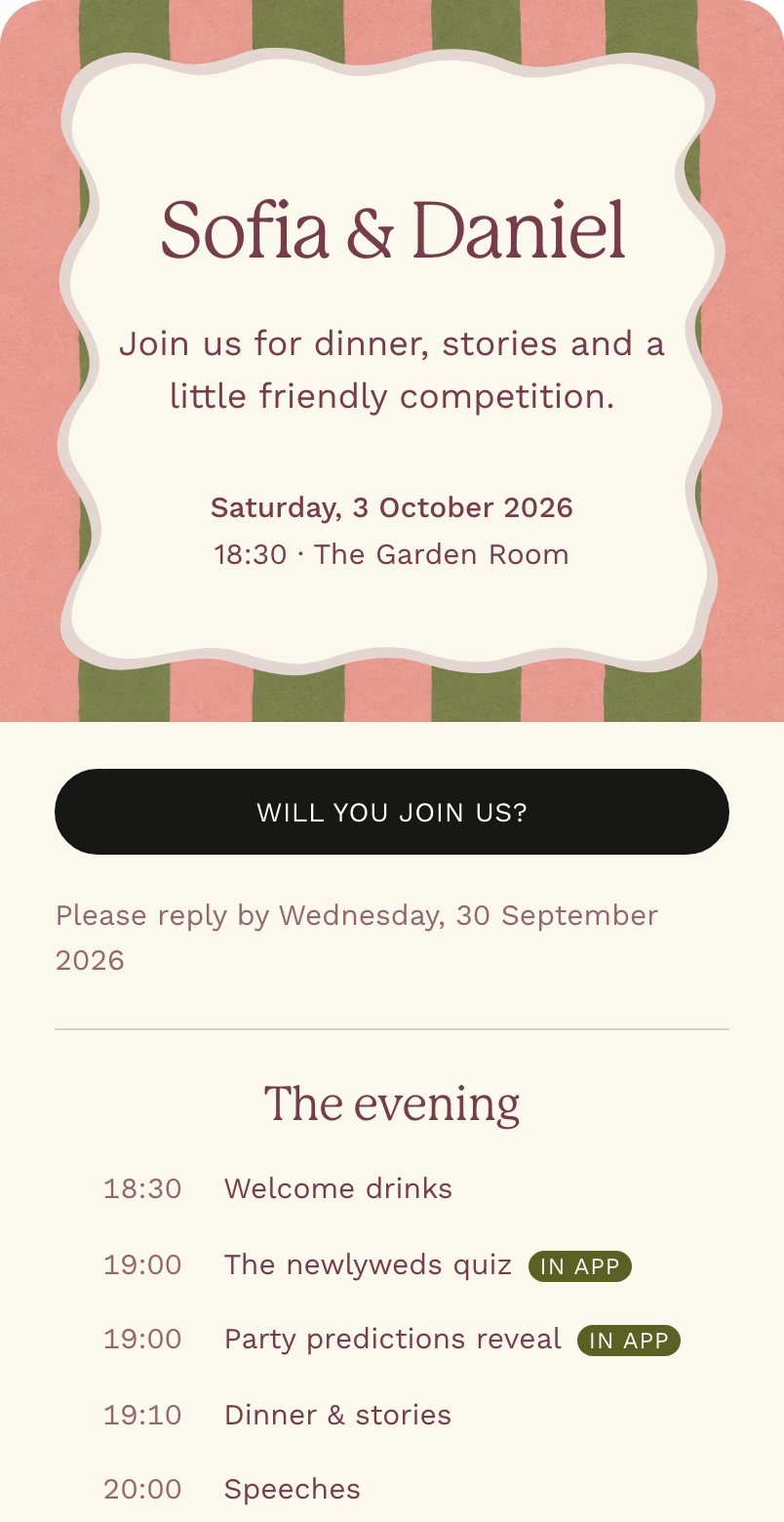
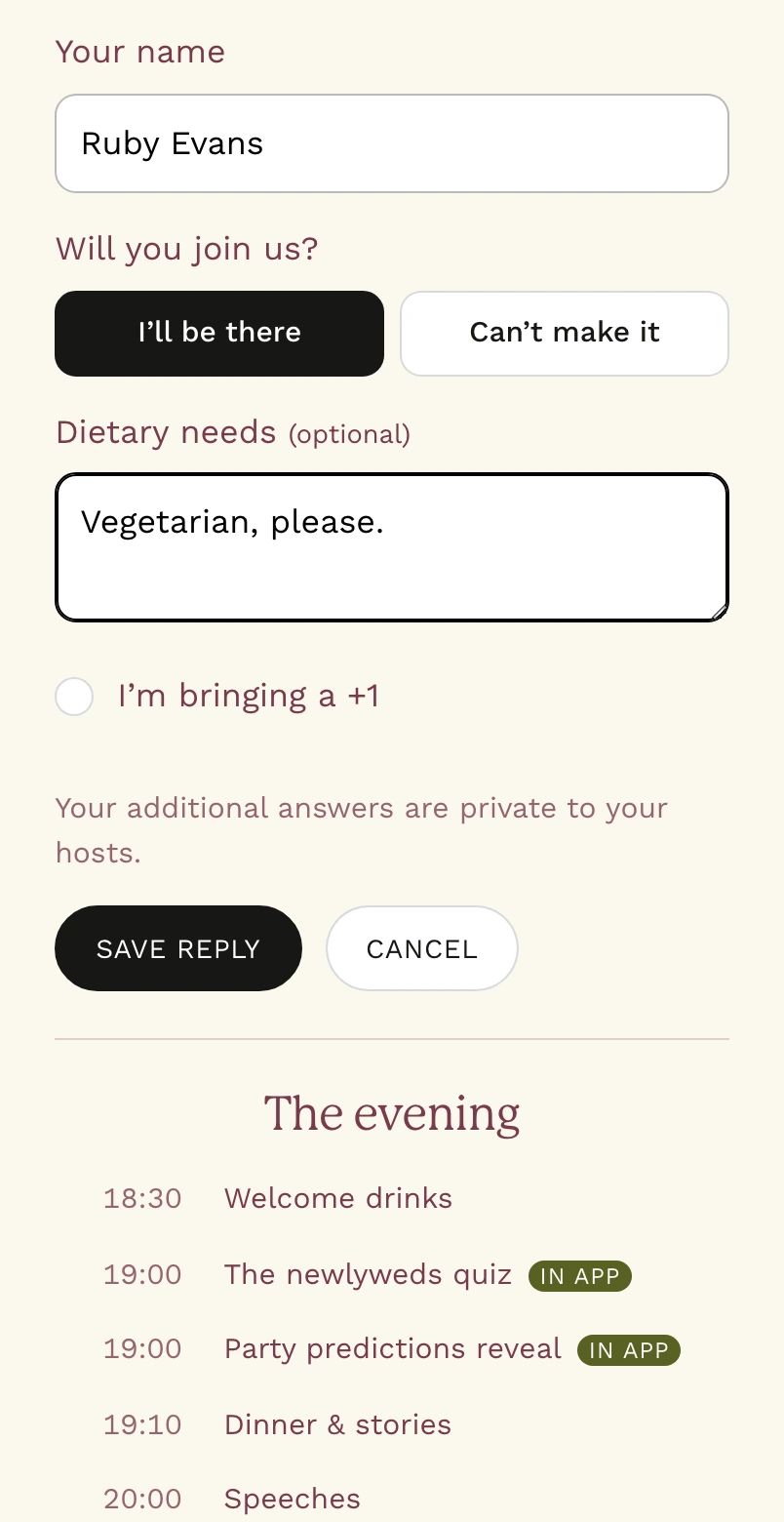
Send the invitation. Know who’s coming.
Personalise your invitation with the event details and share its link. Guests RSVP and tell you about dietary requirements; their replies stay in your guest list.
Event details and RSVP in one link
Track replies before the day, then welcome guests into the event
The invitationThe guest’s reply
3
Turn guest stories into games
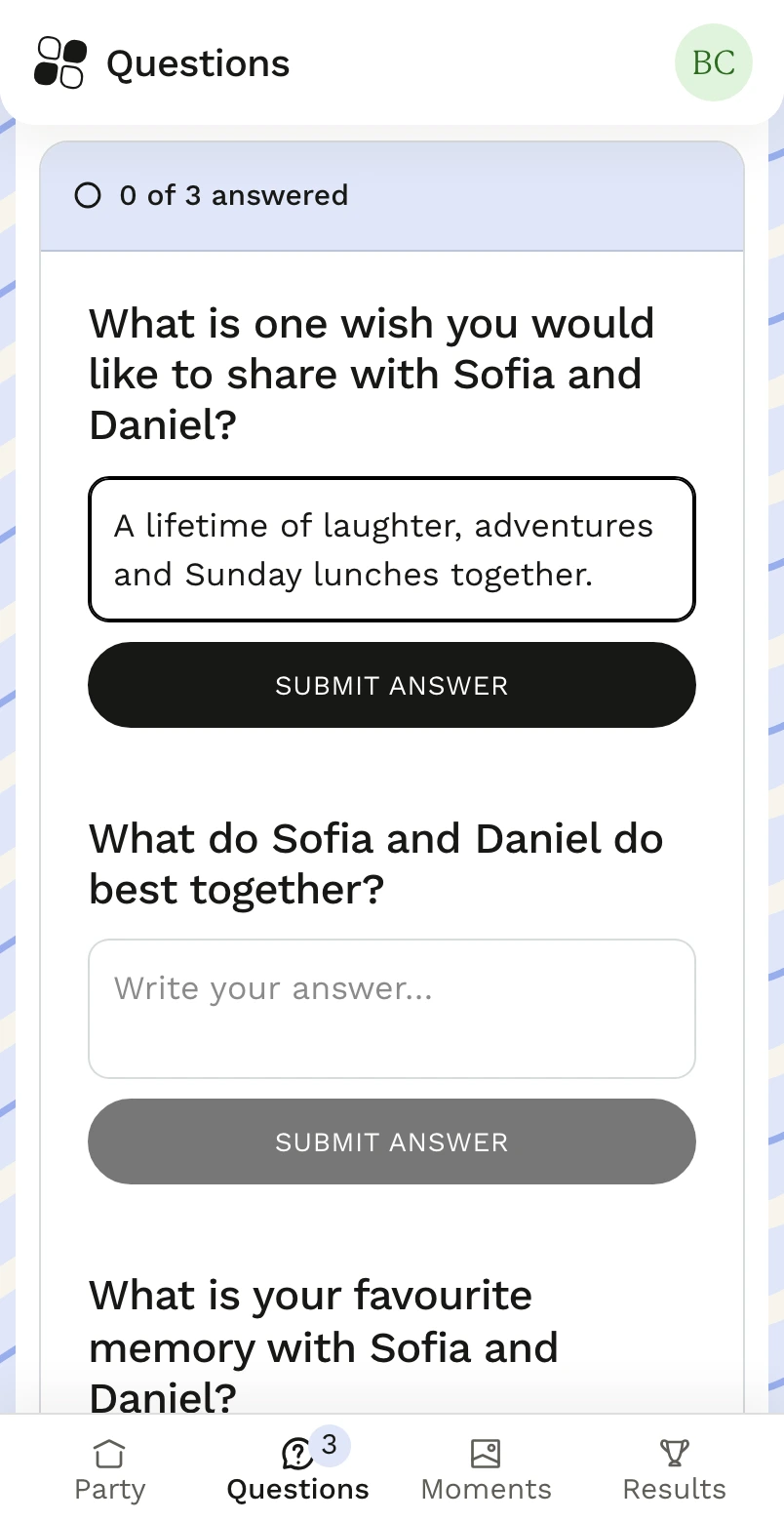
Ask for memories, photos or facts before the event. Review the responses, mark favourites and choose which answers to use in a personalised quiz or bingo.
Questions for everyone or selected guests
You decide what becomes part of the game
Compare answers and choose what to use.
4
Run the evening from your host controls
Open activities, show presentation slides and reveal results from your phone or laptop. Put the live display on a TV or projector while guests play in the same guest room.
Your slides and Canva presentations alongside the games
Bingo, missions and predictions can continue between hosted rounds
Control the shared screen and your activities together.
5
Collect the photos as the event happens
Guests upload pictures from their phones to Moments. Photos from bingo and missions appear there too. Bring the collection onto the shared screen as a slideshow.
One place for guests’ photos
Show the moments while everyone is still together
Example photos in Moments.
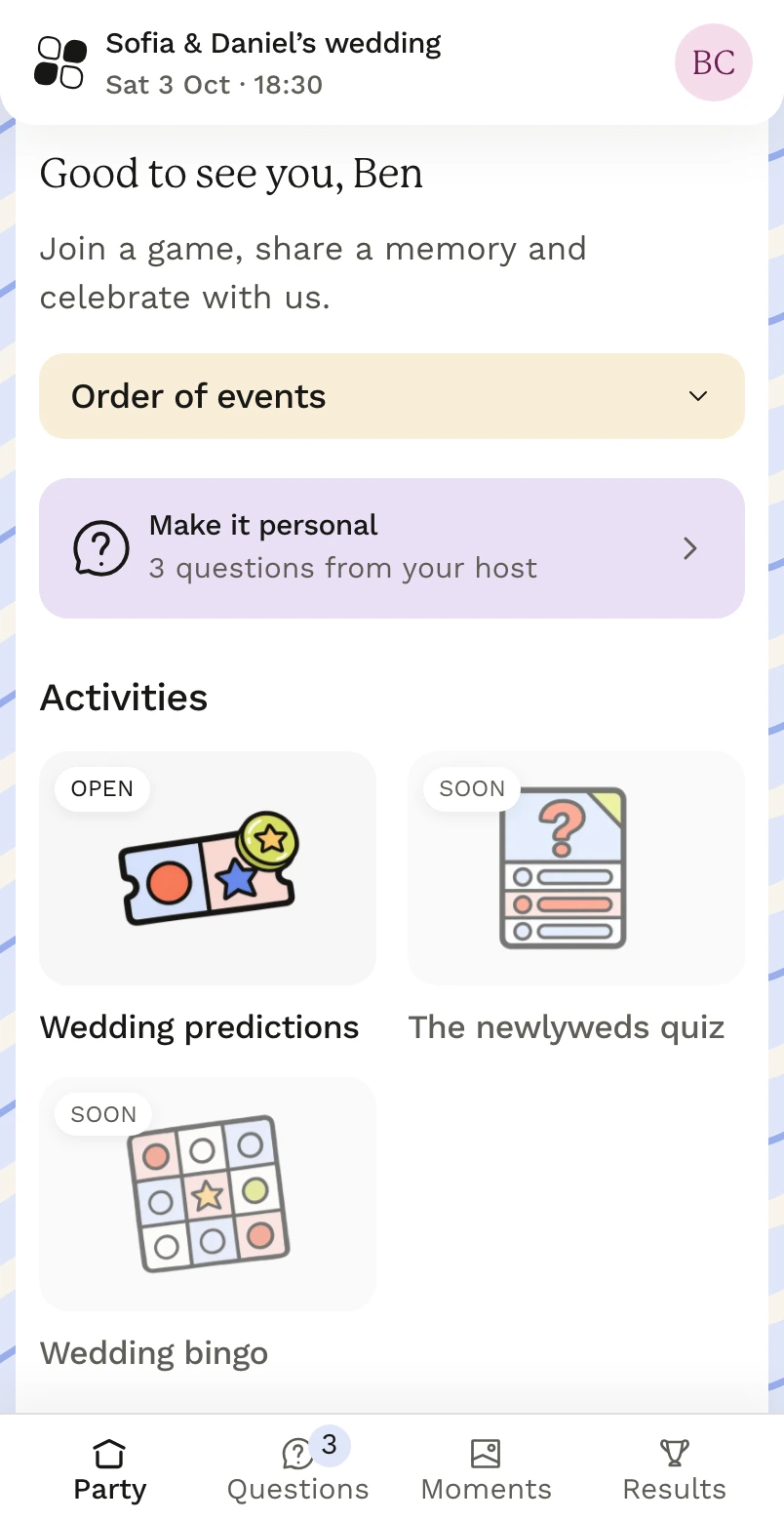
What guests see on their phones
One guest room for the programme, questions, activities, photos and results.
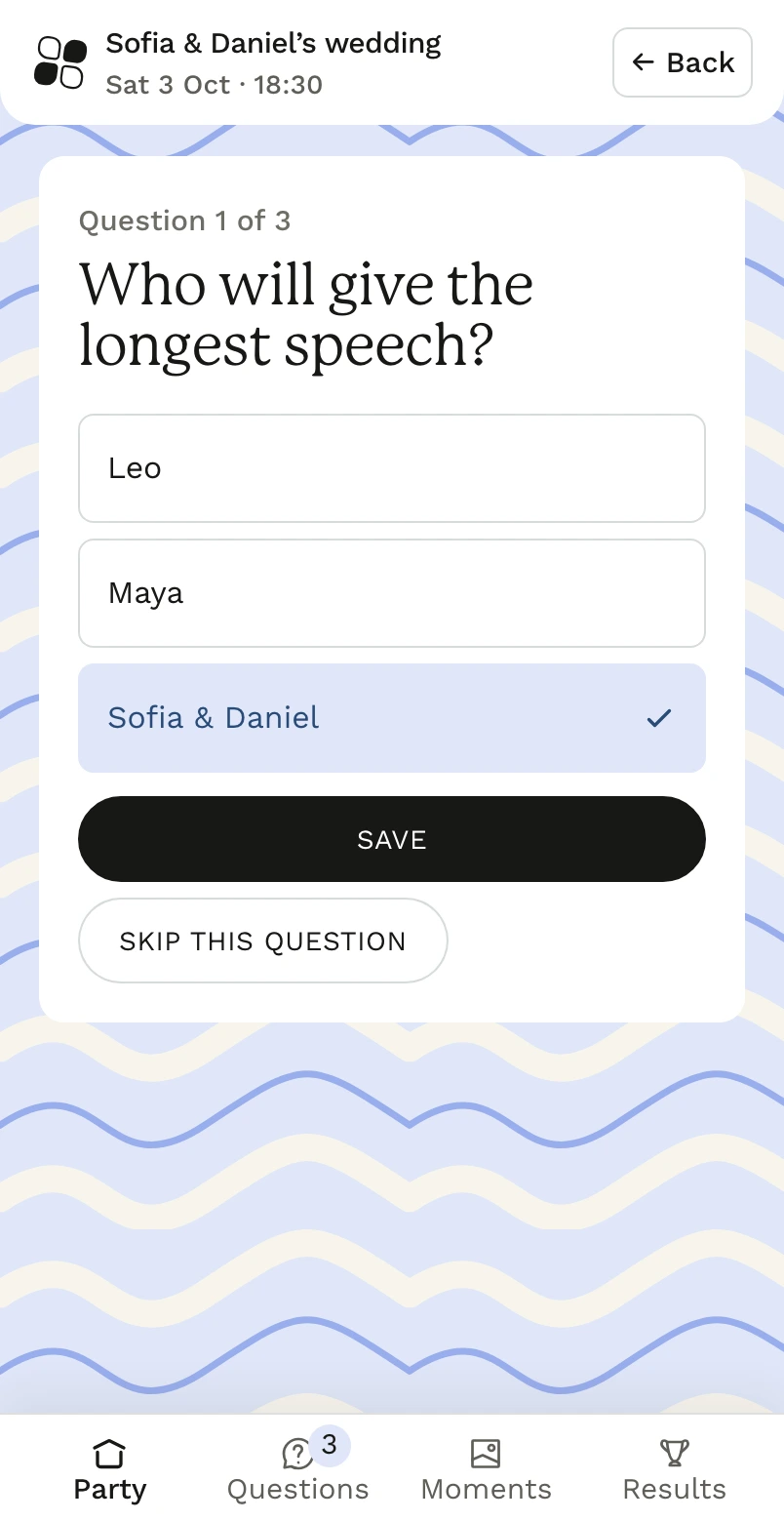
See what’s on and join a game
Guests see the programme and which activities are open, with questions, photos and results in the same guest room.
Send a story before the event
Guests answer your questions before the event. You choose which stories and answers become part of the games.
Play between the big moments
Guests make predictions, follow secret missions or play bingo while the celebration continues.
Before you start
Do guests need an account or app?
Guests open a link or scan a QR code in their phone browser. They enter their name and join without an account or app.
Can I start with just one free game?
Yes. Free includes starter content in live party games and the first 10 questions of ready-made quizzes for up to 10 people. Choose a game or quiz and start playing; a full event programme is optional.
Which features need a paid plan?
Games includes full live party game content, ready-made quizzes and your own quiz questions for 24 hours or monthly. Events adds Bingo, Secret Missions, Quests, Predictions, Awards, invitations and RSVP, guest questionnaires, games from guest answers, presentations and guest photos. Events covers one event or unlimited events with a monthly subscription.
Can I review guest answers before they appear in a game?
Yes. Questionnaire answers arrive in your organiser workspace. Review them, mark favourites and choose what to use. Receiving an answer does not automatically put it on the shared screen.
Can I use my own slides or print the games?
You can add a Canva link or upload a presentation, then control it alongside your games. Presentation tools and the full event print pack are included in Events. Printable quizzes and live game cards are included in Games.